DateEdit Class
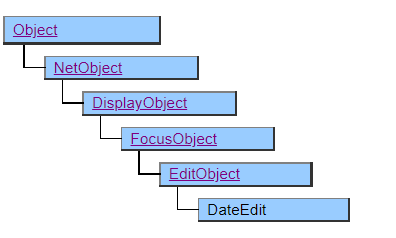
A class that displays a text box dedicated to date entry. There is a calendar function that supports the input of dates.
Calendar is available since Mobile Ver.3.0.0
Calendar is not available in AI
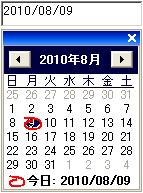
Screen Display Example
Operation Method
Input by Number Keys
Enter a value using the number keys on each element of date and time.
Input by Arrow Keys
The value can be changed by pressing the up and down arrow keys (↑, ↓) on each element of date and time.
↑: To the future
↓: To the past
Enter Today’s Date
Double-click the mouse to automatically enter today’s date. The input item is the item specified by the Format property. For example, if “YY / MM” is specified, only the year and month will be entered.
Enter by Month Name
If the Format property is specified to use the name of the month, you can also enter it using the alphabetic key.
When Format = “MONTH-DD-YYYY” ;, if you enter characters that can uniquely identify the name of the month such as AP and AU, it will be automatically converted to “APRIL” and “AUGUST”.
If you enter a numeric key, it will be automatically converted to the name of the month. For example, if you enter “08”, it will be “AUGUST”.
Enter the Year
The year can be changed by pressing the up and down arrow keys (↑, ↓) on the year.
The abbreviation for the year also can be entered. R = Reiwa
Ver.5.1.1 H = Heisei, S = Showa, T = Taisho, M = Meiji can be used as initial values.
If Format = “WRWYY " year \ “MM " month \ “DD " day \ “” ;, enter H to automatically convert to “Heisei”, then enter 24 to add “year” and it will be “Heisei 24”.
Day
Cannot enter the day. It will be auto-displayed when enter the date.
The day can be changed by pressing the up and down arrow keys (↑, ↓) on the displayed day.If you advance the day, the day will also advance.
Clipboard Operation
Clipboard operations such as copy (Ctrl + C), cut (Ctrl + X), and paste (Ctrl + V) can be used.
In paste, the entire target character string is regarded as a date character string, and it is pasted to the entire range regardless of the selection range.
The string that can be interpreted as a date is in the YYYY / MM / DD format or the format specified by the Format property. If it cannot be interpreted in either format, it is simply pasted in a position where it can be entered and the invalid characters as a date are removed.
Cancel with Ctrl + Z
Unedit and revert to the value of the Value property. Press Ctrl + Z again to return to the state before the cancellation.
Calendar Operation
Press the space key to display the calendar. (If Mobile version, it is displayed when the ShowHelper method is executed.)
Click a date or press the ENTER key to enter the selected date and close the calendar.
Click the x button in the upper right or press the ESC key to close the calendar without selecting a date.
The calendar will not be displayed if the date is not specified as an input field in the Format property. It will also not be displayed if the calendar is not suitable for input operations, such as entering only the year and day or entering only the Japanese calendar.
If there are restrictions on the dates that can be entered by specifying the Format property, the dates that can be displayed on the calendar are also within that range. For example, if the year is two digits, the display range is from 1950 to 2049.
Format
If the Format property is not specified, it operates as if “YYYY / MM / DD” is specified.
The year can be specified in the range of 4 to 2 digits, and the following range can be entered for each.
2 digits: 1950-2049
0-49 is interpreted as 2000 to 2049, and 50-99 is interpreted as 1950 to 1999.
3 digits: 1900-2099
0-499 is interpreted as 2000-2499, and 500-999 is interpreted as 1500-1999. However, the range from 1900 to 2099, which is within the representation range of the Date type, is valid.
4 digits: 1900-2099
The input value is interpreted as it is in the Western calendar.
However, the range from 1900 to 2099, which is within the representation range of the Date type, is valid.
It is possible to specify the year in multiple places in the Format property (such as “YY / MM / DD YY”), but you cannot specify different numbers of digits such as “YY (YYYY)”.
Japanese calendar can be used for the year. The Japanese calendar is always used in combination with the calendar (“WR”) and the year (“WYY”).
When used in combination with the Western calendar (such as “WRWYY (YYYY)”), the input value will be interpreted with priority given to the person who entered the Western calendar or the Japanese calendar. If you enter an element other than the year, the one specified on the left side of the screen will be interpreted preferentially.
Hidden Elements Completion
If there is an item that is not specified as an input item in the Format property (such as “YY / MM” that uses only the year and month as the input item), the missing part is automatically filled. If the Value property is preset in the script, it will be complemented with that date and time. If not set, the year / month is complemented with today’s value, the day is complemented with 1 day, and the time is complemented with 00:00:00.
If the complemented date is an invalid date, the following rules will be used to correct it so that it is a valid date.
- Only the parts that are smaller than the input items are corrected. For example, if the month is an input item, the year will not be corrected. If the day is an input field, the year and month will not be corrected.
- Correction is given priority to smaller units.
For example, if
is specified in the script, the month and day are candidates for correction.Value = "2000/2/29"; Format = "YYYY";
If you enter 2005 in this state, the month and day will be complemented from the Value property to become 2005/2/29, but it is an invalid date.
The month correction will be 2005/3/29 and the day correction will be 2005/2/28, but in such a case, it will be converted to a valid date by the smaller day correction (2005/2/28). - The correction is made so that the date is as close to the input value as possible.
For example, ifValue = "1989/1/5"; Format = "WRWYY\"年 \"MM\"月\"";
If you enter 1991 in this state, it will be corrected to 1989/1/8, which is a date closer to 1991.
Also,
If is specified, the April, June, September, and November inputs will be corrected to 30 days, and the February inputs will be corrected to 28 or 29 days.Value = "2005/3/31"; Format = "YY / MM";
Setting Value property from script and correction by Format property
Ver.5.0.0
The operation is different between Ver.4 or earlier and Ver.5 or later.
In Ver.4 or earlier, the Format property is not considered when setting the Value property from the script.
For example, 2080/01/01 can be set as the Value property from the script for the 2-digit AD format (input range: 1950-2049). Moving the focus from the DateEdit object automatically rewrites the Value property to 1980/01/01, which is within the input range. Also, when the calendar is displayed, the calendar of 1980/01/01 is displayed.
In Ver.5 or later, the Format property is considered when setting the Value property from the script, and the corrected value is set in the Value property.
Other restrictions
The following cannot be specified in the Format property.
- Specify TZ
It is not possible to specify the TZ to display the time zone. - Specify u
Option u cannot be specified to display the time in UTC. It will always be local time. - Specification that does not include the date and time element
If the datetime element is not included (for example, "/ DAY ,."), a PKG-37 exception will be raised.
Printer output by Doc class
It will be printed in the same way as the screen.
Default properties and ValueType
The default property is Value. The value type specification is invalid.
Restrictions when visual style is enabled
Nothing in particular
Precautions when scaling
◆ Calendar window is not subject to scaling