NumberEdit Class
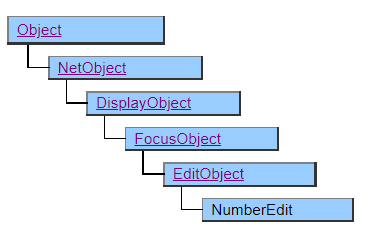
A class that displays a text box dedicated to numerical input. There is a simple calculator function that supports the input of numerical values.
Simple calculator is now available since Mobile Ver.3.0.0
Simple calculator cannot be used with AI
Screen Display Example
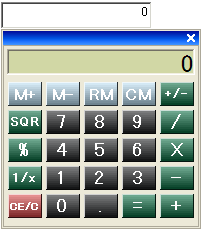
Simple Calculator
Press the space key to activate the calculator. Press Shift + Space to start the calculator with the current value as the initial value.
(In the Mobile version, it is displayed when the a href=”/package/extension3/DateEdit/methods/showhelper”>ShowHelper</a> method is executed.)
You can enter up to 15 digits excluding the sign and decimal point.
The [CE / C] button clears the previous operation if it is in the middle of calculation, and zeros if the calculation is confirmed.
The [=] button confirms the calculation if it is in the middle of calculation, transfers the result to the NumberEdit object if the calculation is confirmed, and closes the calculator.
Precautions when using a simple calculator
Even if the format of the edit character string is specified in the Format property, the contents of the Format property will not be reflected in the simple calculator.
Therefore, it is possible to input in a format that does not conform to the set format on the simple calculator, but the value on the simple calculator is changed to the format set when it is reflected in NumberEdit, so the value different from the input value on the calculator may be displayed.
Example
Format = “999,990”; ※ Cannot be entered after the decimal point Input on a simple calculator: 1.05 Display when reflected in NumberEdit: 105
Simple Calculator Keyboard Operation
In addition to operating buttons with the mouse on the calculator, you can also input from the keyboard.
| Numeric key Numeric keypad Four arithmetic operations symbols | Entering and calculating values |
|---|---|
| BackSpace | Delete one character |
| Delete | [CE / C] button |
| Esc | Cancel the value and close the calculator window |
| Enter | [=] button |
| R | [1 / X] button |
| @ | [SQR] button |
| F9 | [+/-] button |
| %% | [%] Button |
| Ctrl + P | [M +] button |
| Ctrl + N | [M-] button |
| Ctrl + R | [RM] button |
| Ctrl + L | [CM] button |
The shape of the calculator has changed from Ver.4.1.0. As a result, the operability has also changed.
Input Digit Limit
Limiting the number of input digits includes specifying the Format property and MaxLength property.
If the number of digits of the decimal point or integer such as “999.” or “.00” is not set in the Format property, the input limit will be applied based on the MaxLength property. For example, when the MaxLength property is the initial value (15), if it is “999.”, the digit after the decimal point is 12 digits (15-3), and if it is “.00”, the digit of the integer is 13 digits (15-2). ).
If a value less than or equal to the number of digits in the Format property is set in the MaxLength property, the number of digits in the Format property takes precedence.
If neither digit is specified in the Format property, the total length is limited to not exceed the MaxLength property.
The AutoTab property works with this input digit limit.
Printer output by Doc class
It will be printed in the same way as the screen.
Default properties and ValueType
The default property is Value. The value type specification is invalid.
Restrictions when visual style is enabled
Nothing in particular
Precautions when scaling
◆ Calculator window is not subject to scaling