STree Class
A class that displays a simple operation tree view. It provides a tree structure display that is easier to handle than the traditional TreeView class.
Use the STreeItem class to work with each tree item.
The STree class, unlike the TreeView class, has no corresponding object for each tree item. Like the FlexView class, individual tree items are managed as internal data in the STree class and must be manipulated through the STreeItem class.
Tree items are created with the Append method of the STreeItem class. In addition to the method of adding one item by specifying a character string, you can also specify XML to generate a tree structure in a batch.
Example
var rootitem = STree1.RootItem;
var item1 = rootitem.Append("item1");

var xdoc = new XmlDocument();
xdoc << xml <<-
<?xml version="1.0" encoding="SHIFT_JIS"?>
<data>
    <item title="item2">
        <item title="item2-1"/>
        <item title="item2-2"/>
    </item>
</data>
->>;
var item2 = rootitem.Append(xdoc);
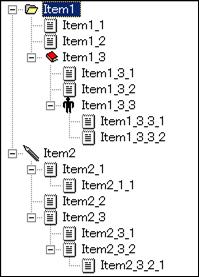
Screen Display Example
Printer output by Doc class
Not subject to printing.
Default properties and ValueType
The default property is Value. ValueType can be String, Number, Fixed, Date and UString.
Specifying Icon Number
By default, the displayed icon types are as follows.
| Icon No | Icon Image |
|---|---|
| 0 ~ 9 |  |
| 10 ~ 19 |  |
| 20 ~ 29 |  |
| 30 ~ 39 |  |
| 40 ~ 49 |  |
| 50 ~ 59 |  |
| 60 |  |
The SetImage method can be used to change to the icon stored in the ImageList object.
Accessor object
Tree items are not objects, so you cannot work with individual tree items directly, but the STreeItem class is defined as an accessor to tree items. An accessor is a kind of pointer, and operations to the accessor are transmitted to the tree item pointed to by the accessor. For example, if you change the accessor of the tree item obtained from the STree class, the Title of the STreeItem, the display string of the tree item pointed to by the STreeItem will change.
Since the accessor is not the tree item itself, the states of the accessor and the tree item are not always in sync. For example, if you define two accessors for one tree item and call the Delete method of one accessor to delete it, the other accessor will not be deleted and will be an invalid accessor pointing to an item that does not exist.
Scope of use of accessors
Accessors are created dependent on the source STree object and the parent tree item, and work with the internal STreeItem object to actually access the tree item. Therefore, the accessor object cannot work if the STree object is lost or the parent tree item is deleted. If you use accessors, be sure to maintain STree objects and parent tree items. It is not necessary to maintain the accessor for the parent tree item.
About accessors and object trees
The object tree represents the hierarchical relationships between objects in the CRS language. On the other hand , the hierarchical structure of tree items in the STree class is managed inside STree, not as the hierarchical structure of objects . Therefore, it is not possible to search for a tree item using the FindObject method or FindChild method for the STreeItem object that is the accessor. Use FindItem and FindItems methods to search for tree items .
FirstVisibleItem and LastVisibleItem
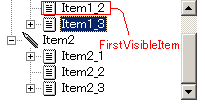
The FirstVisibleItem property refers to the item displayed at the top of the screen according to the scroll position, such as the item surrounded by the red frame in the figure below.
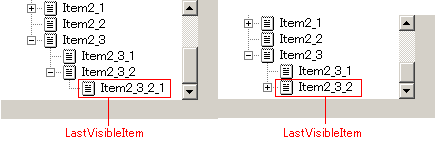
On the other hand, please note that the LastVisibleItem property points to the object displayed at the bottom regardless of the scroll position, as shown in the figure below.
Restrictions when visual style is enabled
Nothing in particular
Precautions when scaling
◆ The size of the tree display itself is only affected by the font size