SSpread Class
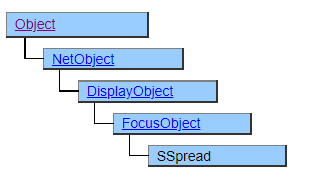
A class that displays high-performance spreadsheets.
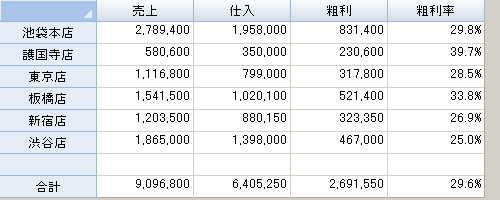
Screen Display Example
Printer output by Doc class
Not subject to printing.
Default properties and ValueType
There are no default properties. The value type specification is invalid.
Character Code
In this class, the basic character code is treated as Unicode, and the properties and methods that handle character strings are UString type with some exceptions.
If you set an object of type String, it will be automatically converted to type UString before processing.
When specifying the number of characters and the position of characters, it is in character units without distinction such as full-width / half-width.
SSpread class-specific property execution order specification
In normal CRS execution, the properties set in the script are reflected on the GUI side after the execution of the series of scripts is completed.
Therefore, the setting order of properties is not related to the reflection of GUI, and conversely, when referencing properties, the state of GUI is not reflected in real time.
However, the SSpread class is designed with a strong awareness of porting from client-server type applications created with Visual Basic, and is executed with different behavior rules from other classes.
Setting and reading properties is accessed in real time in the GUI and executed in the order in which they are written, including methods.
(Description example)
Col = 2;
Row = 3;
BgColor = $BLUE;
Col = 4;
Row = 5;
BgColor = $RED;
In normal CRS execution, only Col = 4, Row = 5, BgColor = $ RED described later are valid, but in SSpread class, Col = 2, Row = 3, BgColor = $ BLUE are executed as described, and In addition, Col = 4, Row = 5, BgColor = $ RED are executed.
Therefore, the order in which the properties are written directly affects the execution speed.
Generally, the speed decreases as the number of target cells increases, so it is more efficient to execute the property method that is reflected in the entire spreadsheet at the stage where the cell data is as small as possible.
Col, Row, Col2, Row2, BlockMode properties
The Col, Row, Col2, and Row2 properties are used to set the scope of processing before performing various processing on the spreadsheet.
Targets for which these properties need to be preset include the BackColor, ForeColor, FontBold, FontItalic, CellType, Text, Value, Lock, and Formula properties.
| Processing object | Properties to set |
|---|---|
| Cell | Col , Row |
| Column (1 column) | Col , Row ( -1 ) |
| Column range | Col , Col2 |
| Column header (1 column) | Col , Row ( 0 ) |
| Whole column header | Col ( -1 ), Row ( 0 ) |
| Row | Row , Col ( -1 ) |
| Range of rows | Row , Row2 |
| Row header (1 column) | Col ( 0 ), Row |
| Whole row header | Col , Row ( -1 ) |
| Cell block | Col , Row , Col2 , Row2 , BlockMode ( $TRUE ) |
| Entire spreadsheet | Col ( -1 ), Row ( -1 ) |
Set BlockMode to $TRUE to enable the Col2, Row2 properties to specify cell blocks.
If you leave BlockMode at $TRUE after setting it to a cell block, it may affect the unintended range in the subsequent processing, so it is recommended to return it to $FALSE after use.
If you specify multiple cells with different values and refer to the values, the value of one representative cell will be returned in principle. To ensure that you get the value of a particular cell, specify the cell clearly in the Col and Row properties before referencing.
This class’s unique color handling (#RRGGBB format)
Apart from the standard color constants ($BLACK, $FF0000, etc.), any color can be used in this class.
Color information is represented by a character string in the following format.
"#RRGGBB"
1st character: #
2nd and 3rd characters (RR): Hexagonal number (00 to FF) representing the red component
4th and 5th characters (GG): Hexagonal number representing the green component (00 to FF)
6th and 7th characters (BB): Hexagonal number (00 to FF) representing the blue component
(Example)
Orange color
For the colors defined in the color constants, the color constants take precedence even if the string format is specified.
Specifying $ STD sets the standard color.
Index Property
Some properties get and set the value by specifying the index number of the target data. (Example: ColWidth, RowHeight property, etc.)
/* Acquisition Example */
var w = ColWidth(5);
var h = RowHeight(7);
/* Setting Example */
ColWidth(5) = w + 10;
RowHeight(7) = h + 10;
Notice that the index number is enclosed in (n) (round brackets) instead of the [n] (square brackets) that represent the array.
The substance of these properties is a method, and by passing an index number as an argument of the method, it behaves like a property.
(Displayed as a method on Biz / Desiger)
In this manual, properties with such a function are called “index properties” and are treated as properties.
Restriction of property setting by reference operator (& =)
The “reference operator”, which is an operator peculiar to Biz / Browser, automatically assigns the changed value to the left side when the right side of the assignment expression is changed.
(Example)
Width &= ^.Width - 10;
Height &= ^.Height - 10;
However, there are many properties in this class that can be changed to affect the values of other properties or behave differently depending on the order in which they are set.
When a reference operator is used for such a property, the intended result is difficult to obtained because the processing target of the assignment destination (left side) and the value of the reference destination (right side) may differ depending on the state of other properties.
Properties whose “& =” column in the Property List is “x” are targeted.
(A typical example is a property that presets the Col and Row properties.)
Do not use these properties on either the left or right side of the reference operator.
(Example that cannot be used)
Col = 2;
Row = 3;
BackColor & = ^. Label1.BgColor; / * Specify on the left side * /
Col = 4;
Row = 5;
^ .Label1.BgColor = $ RED; / * The reference operator changes the background color of columns 4 rows 5 cells * /

Col = 6;
Row = 7;
^ .Label2.BgColor & = BackColor; / * Specify on the right side * /
Col = 8;
Row = 9;
BackColor = $ GREEN; / * The reference operator changes the background color of Label2 * /
Note that these properties are excluded from the property view of Biz / Designer so that they cannot be set, so specify them directly in the CRS program.
Limits on fonts applied to cell blocks
If you use the FontBold,FontFace, FontItalic, FontKind, FontName, FontSize, FontStrikethru, and FontUnderline properties and set BlockMode to $TRUE to apply the settings to a cell block, the font settings for each cell will be discarded and the font will be recreated based on the cell pointed to by the Col and Row properties.
In other words, if you make a cell “bold” and then apply “oblique” to the cell block that contains that cell, the “bold” will be canceled.
When setting fonts, first make common settings from a large range, and then make individual settings.
Get and set the value for each cell data type
Depending on the cell data type set in the CellType property, the cell value can be obtained and set as follows.
| Cell data type | Data / status | Text property | Value property |
|---|---|---|---|
| Text type | - | String | String |
| Label type | - | String | String |
| Date type | "2011/04/27" | "2011/04/27" | "20110427" |
| Momentary | "11:25:03 pm" | "11:25:03 pm" | "232503" |
| Numeric type | "10,000.00" | "10,000.00" | "10000.00" |
| Currency type | "\10,000.00" | "\10,000.00" | "10000.00" |
| Percentage type | "15%" | "15%" | "0.15" |
| Exponential | "2.22E+05" | "2.22E+05" | "222222" |
| Mask type | "22-45-76" | "22-45-76" | "224576" |
| Command button | Being pressed | "1" | "1" |
| Not pressed | "0" | "0" | |
| Not set | blank text column | "0" | |
| Checkbox | Ticked | "1" | "1" |
| Unticked | "0" | "0" | |
| Gray state | "2" | "2" | |
| Not set | blank text column | "0" | |
| Combo box | - | String data of the selected element | Index of selected element (Blank character string when not selected) |
Precautions for specifying the range based on the lower and upper limits
Properties that specify a range of values, such as TypeNumberMin and TypeNumberMax, can limit input operations, but do not guarantee that the values will be within the range. Incorrect values may be set temporarily by input operations, or incorrect values may be set from the CRS script.
The EditError event is raised when an invalid value is set by an input operation. If want to make sure that the value is checked, control it with a CRS script.
Notes on property references in event handlers
Biz / Browser events are executed sequentially after being accumulated in the event queue. Therefore, there is no guarantee that the timing and order of events will always be the same.
Even for events that occur in this class, the value of the property referenced in the event handler may differ depending on the execution status. For example, the LeaveCell event is generated by moving the active cell, but it is uncertain whether the value before or after the move can be obtained when the ActiveCol or ActiveRow property is referenced in the OnLeaveCell event handler.
Events of this class are passed relevant information as child objects of event handler arguments (Event objects), so be sure to use that information.
Function OnLeaveCell(e) {
    ^.Label1.Value = ActiveCol; /* variable */
    ^.Label2.Value = ActiveRow; /* variable */
    ^ .Label3.Value = e.Col;      / * Column number before moving * /
    ^ .Label4.Value = e.Row;      / * Row number before moving * /
    ^ .Label5.Value = e.NewCol;   / * Column number after move * /
    ^ .Label6.Value = e.NewRow;   / * Moved row number * /
}
Inherited property for each cell data type
The CellType property and properties whose name starts with “Type” set the cell data type. These properties are stored for the last setting for each cell data type, and are inherited the next time they are set for a cell with the same data type. See the CellType property for more information.
Standard keyboard operation and KeyDown event
The spreadsheet can be operated with the following keys.
| Key | Action |
|---|---|
| Arrow keys | Move active cell Extend the selection with the Shift key |
| PageUp , PageDown keys | Move the active cell up or down on a page-by-page basis Move left or right with Ctrl key |
| Home , End key | Move active cell to first or last cell in row Use the Ctrl key to move to the first and last cells of the whole |
| Tab key | Set in ProcessTab property |
| Space key | Select a line with the Ctrl key Select a column with the Shift key Select all with Ctrl + Shift |
| Enter key | Set by EditEnterAction property |
| Esc key | Cancel selection etc. |
| Delete key | Set with ProcessDelete property |
If set the AutoClipbord property to $TRUE, the following key operations also can be used.
| Key | Action |
|---|---|
| Ctrl +’C’ , Ctrl + Insert | Copy |
| Ctrl +’X’ , Shift + Delete | Cut |
| Ctrl +’V’ , Shift + Insert | Paste |
The above key does not generate the KeyDown event of the parent Form when pressed. Specifying AltKey properties such as Button on the same Form is also invalid.
Other keys will raise the KeyDown event of the parent Form if they are not used to edit the data. Control by key operation should be performed by the OnKeyDown event handler of the parent Form.
Import/Export function in Excel
SSpread is equipped with methods for reading from Excel format files and outputting to Excel format.
This function tries to match the cell information handled by SSpread with the cell information handled by Excel as much as possible, but please note that the input / output results do not exactly match because there are differences in the functions that can be handled by each.
Also, macros (VBA), graphs, and other images cannot be input or output with SSpread.
Please note that if the file has an extremely large size or a large number of formulas, it will take a very long time to import / export, and the process may slow down or stop (no response).
Correspondence of ruled line during output
The relationship between the ruled line specified by SSpread and the ruled line output is as follows.
| Constant | Description | Ruled lines in Excel |
|---|---|---|
| $CellBorderStyleSolid | Solid line | Thick line |
| $ CellBorderStyleDash | Dashed line | Thick dashed line |
| $ CellBorderStyleDot | Dotted line | Dotted line |
| $ CellBorderStyleDashDot | Dashed dotted line | Thick dashed dotted line |
| $ CellBorderStyleDashDotDot | Dashed double dotted line | Thick dashed double dotted line |
| $CellBorderStyleFineSolid | Very fine dotted line | Solid line |
| $CellBorderStyleFineDash | Fine dashed line | Dashed line |
| $CellBorderStyleFineDot | Fine dotted line | Dotted line |
| $ CellBorderStyleFineDashDot | Fine dash-dotted line | Dashed dotted line |
| $ CellBorderStyleFineDashDotDot | Fine dashed double-dotted line | Dashed double dotted line |
Restrictions when visual style is enabled
Nothing in particular
Precautions when scaling
◆ The displayed content is not subject to scaling.