StyleEdit Class
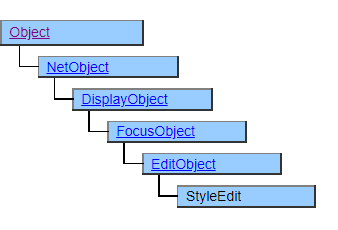
A class that displays style edits.
In addition to the multi-line input edit box function such as the EditBox class, style editing has the function of registering fonts and display colors as styles and displaying multiple styles in a mixed manner.
You can define two styles that can be associated with keywords and 23 other styles.
In addition, the response in long sentences is improved compared to the EditBox class, and functions suitable for sentence editing such as unlimited undo, line number display, automatic indentation, and drag and drop editing have been added.
Screen Display Example
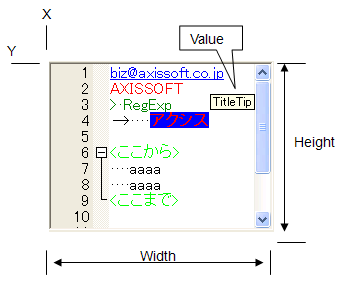
Printer output by Doc class
Enclose the characters in a square and display them. Various decoration contents and word wrap specifications are not reflected in the print result.
Default properties and ValueType
The default property is Value. The value type specification is invalid.
Ctrl key editing function
The following functions are assigned to the combination of the Ctrl key and the alphabet key in the StyleEdit class.
| A | Select all |
| C | Copy |
| D | Line copy |
| L | Delete line |
| T | Line replacement |
| V | Paste |
| X | Cut out |
| Y | Redo |
| Z | Undo (Undo) |
| ] | Next paragraph |
| Shift +] | Select up to next paragraph |
| [ | Previous paragraph |
| Shift + [ | Select up to the previous paragraph |
| Mouse wheel | Display enlargement / reduction |
Style Setting
In the StyleEdit class, use the SetKeywordStyle method and SetStyle method to register a “style” that combines fonts and display colors, and change the display using that style number.
In particular, you can use the SetKeywordStyle method to automatically highlight specific keywords.
Register Keyword List
SetKeywordStyle (0, “AXISSOFT ¥ nAxissoft ¥ nTokyo ¥ nShinjuku-ku”, StyleEdit.NOCASE, $RED, $STD, $BOLD, $STD, 14);
Register the keyword list separated by keywords with ¥ n (line feed code) in style 0. From now on, this keyword will automatically be displayed in the settings style.
Register keywords with regular expressions
SetKeywordStyle (1, “[a-z0-9 ¥¥ ._ ¥¥-] + @ [a-z0-9 ¥¥ ._ ¥¥-] +”, StyleEdit.REGEXP + StyleEdit.NOCASE + StyleEdit.HOTSPOT, $ BLUE);
Register xxxxx@xxxxx.xxx.xx ( email address format ) in style 1. After that, when the character string corresponding to this regular expression appears, it is automatically displayed in the setting style.
Register Style and used arbitrarily
SetStyle(10, $RED, $STD, $BOLD, $STD, 16, $TRUE); Styling(10, 0, 9);
Set the style to style 10, and set the style from the beginning to the 10th character.
Restrictions on Style Usage
The keyword style by the SetKeywordStyle method and the arbitrary style setting by the Styling method cannot be used together. The style is overwritten because the keyword style takes precedence.
When using the Styling method, do not register the keyword style.
Also, if the keyword matches multiple styles, the style with the higher number takes precedence.
Style Settings and Line Spacing
The line spacing for style editing is based on the font with the widest line spacing of all registered styles, whether used or unused.
Specify the Cullet Position
The Position property allows you to get the current cullet position or move the cullet to any position.
Anchor and Selection
The selection range of style edit is expressed by the combination of the current caret position (Position property) and anchor position (Anchor property).
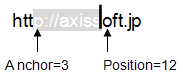
The difference in size between the Anchor property and the Position property is whether the caret is before or after the selected position.
If the Position and Anchor properties are the same, there is no selection.
Use of HotspotClicked and HotspotDoubleClicked Events
When specify a hotspot style in the style settings and point with the mouse cursor on the styled characters, an underline will be displayed and the mouse cursor will change.
Clicking or double-clicking the mouse button in this state will generate the HotspotClicked and HotspotDoubleClicked events.
In the event handler, the style number and the character string of the clicked part can be obtained, and it can be expressed like a hyperlink by a Web browser.
Unlimited Undo
Style Edit keeps an unlimited undo history. However, when the script assigns to the Value property, the undo history is cleared at that time.
Use the ValuEmptyUndoBuffere method if you want to clear the undo history.
Auto Indent
When the AutoIdent property is set to $ TRUE, the beginning of a line is automatically indented according to the indentation of the previous line by inputting a line feed (Enter key).
Drag and Drop Editing and AcceptDrop Properties
Style Edit has a character editing function by dragging and dropping as standard, and you can move or copy by selecting and dragging a character.
Setting a value for the AcceptDrop property disables the editing feature and gives priority to the behavior of the AcceptDrop property.
Change access to inherited properties
The StyleEdit class has different access from the inheritance source property for the following properties.
FontKind, FontFace, FontSize properties
CR → CRW (initialization, readable / writeable)
AcceptDrop
CRW → CR (initialization, readable / writeable)
Additional functions since Ver.4.1.3 —>
Brace Folding Function
A brace (enclosed in parentheses) interval between specific keywords can be specified by using the StyleEdit.BRACESTART and StyleEdit.BRACEEND styles with the SetKeywordStyle method.
Between the braces, the brace section is displayed on the left side so that the line can be collapsed.
This function can be used to display a hierarchy of things like program sources, or to display long sentences in outlines for each paragraph. <— until here
Restrictions when visual style is enabled
Visual style specification is invalid
Precautions when scaling
◆ The displayed contents are not subject to scaling.
The above restrictions have been removed since Ver.5.0.1.